UV is a program that helps manage virtual environments (your dependencies) by installing them through the terminal with a few commands. These dependencies are required for the game to run, so you must either use UV as instructed, or install every requirement individually yourself.
The provided README.md in your game folder is already quite helpful, but if you need detailed instructions, follow the section dedicated to your operating system.
Yes, this guide can also work and apply with up-to-date mods. You just have to take the initiative to change some details to reflect the mod you're installing. Make sure to read the instructions carefully.
QNA
Here's a little QNA for things you might want to know before you proceed with UV.
Does UV work with Thonny?
No, it does not. Rather, it's mostly an issue with ClanGen and Thonny clashing than it is with UV refusing to work with Thonny. Thonny does not support every dependency ClanGen needs (so it requires you to install additional thonny-exclusive environments), and frankly, sometimes that's just more work than necessary.
In short terms, no, we do not recommend using Thonny with ClanGen, but it can be possible.
What should I install before attempting to install UV?
First, you need ClanGen's source version of the game. This is essentially the developer version that gives you access to the games core coding.
You can download the source version through either:
- github releases (source version of stable releases)
- the green <> code button to the right (source version of development commits). Make sure you're selected on the right branch before using the <> code button!
Secondly, you'll need a terminal program. The terminal program that comes with your device is just fine. It's recommended to install UV through the devices default terminal.
Do I need python before installing UV?
Nope! Unlike poetry (the installer ClanGen was using previously), UV installs Python automatically as a requirement. It also automatically uses the correct Python the game needs, so you no longer have to delete other versions of python to make it work.
Are the dependencies installed locally?
Probably not in the way you're thinking. UV itself is installed locally onto your device, though the dependencies are installed along with the source copy you're applying them to. If you're using multiple source copies, you'll have separate dependencies for each one of them.
Does Source work for windows 7 & chromeOS 2.31?
Theoretically, yes. For now, that is. The source version of the game is not operating system specific, so it is not as limited as the application in what can use it.
There will be a time where you are unable to install the required python version or dependency. While ClanGen tries to cover all desktop operating systems, the game has to grow into new technology eventually - and that means old operating systems will lose support slowly.
Terminology
If you are unsure of the terms I'm using and how they apply to installing the game, please check here for definitions! Apologizes if I miss something.
Operating system: The devices system, such as Windows, macOS, chromeOS, Linux.
- If you do not know what operating system you're using, you can find it in your devices "system" settings.
Source: A version of ClanGen that gives you access to ClanGen's core coding, rather than it being compressed into an easy-to-use launcher.
- Source can be BOTH stable and development. Source =/= development
Dependencies: The requirements necessary for your game to run.
PATH: Path is referring to what your terminal is set to affect.
Application: Application is referring to the exe install that has all the core coding compressed into the application launcher.
Terminal: Terminals are a texted-based interface used to affectively communicate with a computer's operating system, allowing the user to input commands and execute tasks.
Windows
Warning
All the commands listed in this guide are COPY AND PASTE. Please do not change the commands!
Please follow this windows section if you're using a windows device!
For the following instructions, we will be continuing with Windows PowerShell (NOT ISE). This is the recommended method, but if you want to use another method, please take a look at UV's alternative download methods.
Installing UV
Open Windows PowerShell. If you're unsure how to do that, use the quick search in your task bar and type in windows powershell. Open the program that pops up.
Copy the following command and paste it into your opened terminal:
Press enter. Once the command is done finalizing, close out of the powershell program to "reset" the terminal.
Search and open Windows PowerShell again. Once the terminal is opened, input the below command:
Press enter. This is simply checking to see if the previous command installed UV correctly. If this command spits out uv [number] (numbers), then it worked.
Running via RUN file
Go to your ClanGen source game folder in file explorer and scroll through the files until you see a run file. The type should be "windows batch file". Double click that.
The run file should download your requirements and open the game for you. If it DOES NOT open, follow the next steps.
Running Manually
If the RUN file doesn't end up working for you, or you want to do the manual way instead, then follow this section.
Now that UV is properly installed, you can switch to any other IDE of your choice to install your requirements. The installing example continues to use powershell, but powershell isn't required for this section.
- If you're intending to use an IDE with ClanGen going forward, it is recommended to switch to the IDE and use
uv syncat least once before proceeding with it's features.
PATH
Open in terminal
Go to where your unzipped ClanGen source is located on your device, and open it until you get to its internal contents. Right click in an empty space within the file explorer, and select open with terminal. It'll automatically open in the correct pathing.
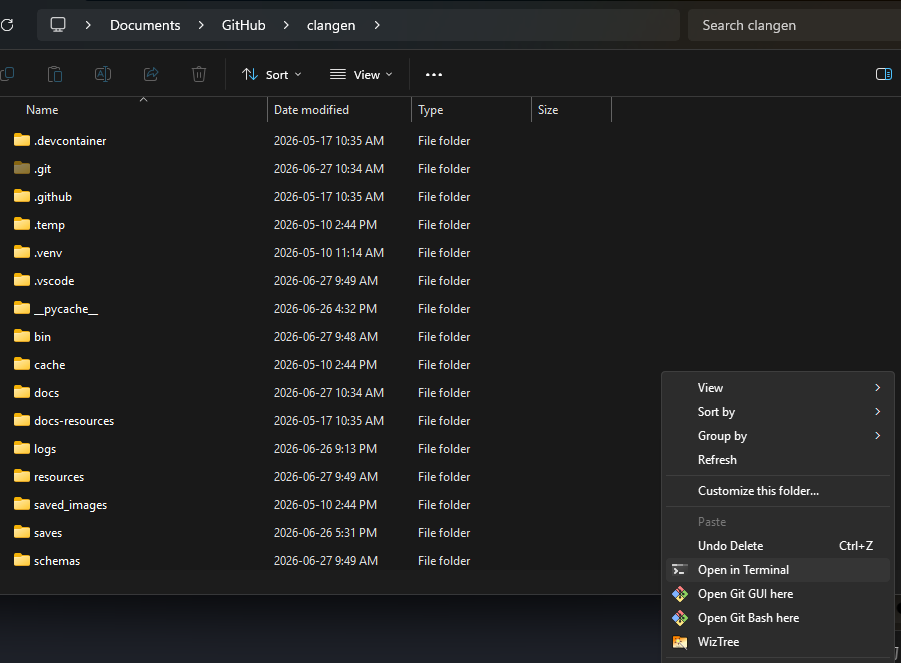
Follow the section "commands" below.
Manually
Open a new version of Windows PowerShell.
Before we can do any commands, we have to set the terminal to PATH.
- If you're unsure of what this means: the terminal can only affect what you set it to affect. If you leave it to its default pathing, it CAN NOT find ClanGen and apply your commands.
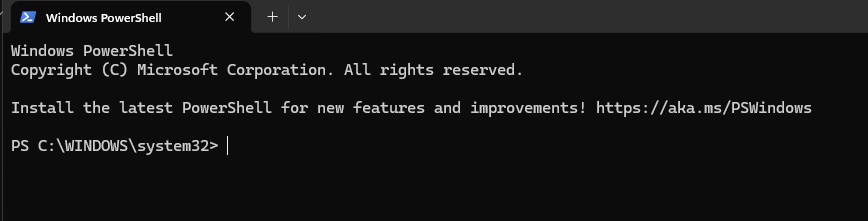
Type cd into your terminal. Do not enter yet.
Go to where your unzipped ClanGen source is located on your device, and open it until you get to its contents. Look at the top of the file explorer, and right click the last folder listed in the file pathing. Select "copy address as text".
- "Copy address as text" copies the entire file pathing to the folder you right clicked, which is perfect for this kind of command.
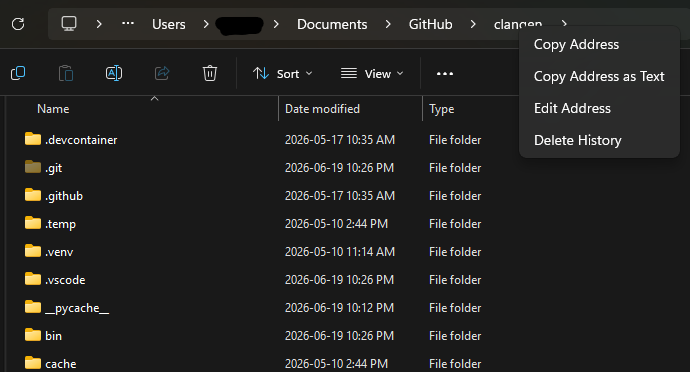
Paste the text you just copied after the cd command. it should end up look similar to cd C:\Users\username\Documents\ClanGen-stable/ClanGen. Enter.
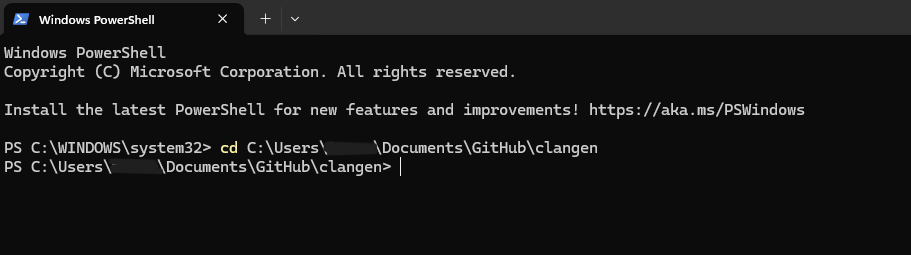
Once the terminal is set to the path, use the command dir to make sure you're in the correct place.
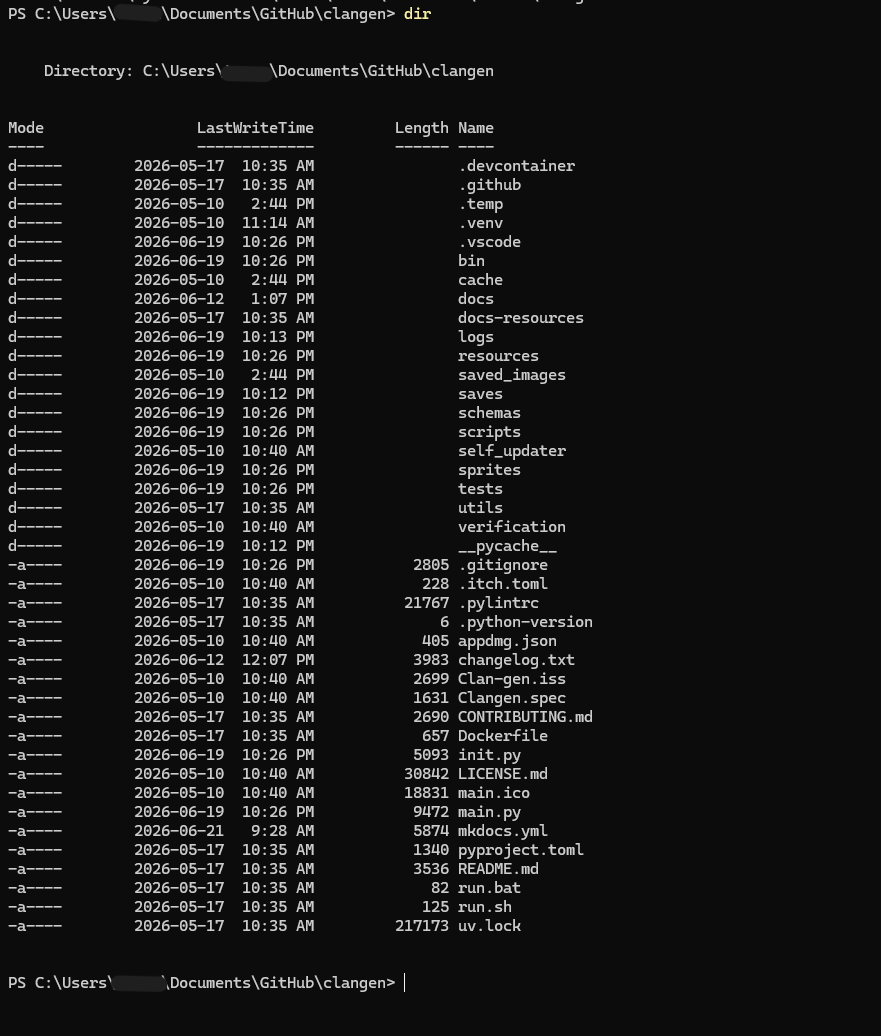
You should see the internal contents of the ClanGen source folder, like above.
If you don't get the internal contents, reset your terminal and try again. If it's just a folder called ClanGen, you can use cd ClanGen to further add to the terminal path, then confirm with dir.
Commands
Once you're on the right path, you can then start adding commands to your terminal.
The first one is actually installing your dependencies using UV.
uv sync will automatically generate the necessary .venv folder where your dependencies will be held.
Once the above command is finalized (without errors), we can now open the game using a command:
When using the manual way, you will have to put the terminal to the correct file path and use the open command above every time you want to play (Unless the IDE you intend to use offers a run option).
macOS/Linux/chrommeOS
Warning
All the commands listed in this guide are COPY AND PASTE. Please do not change the commands!
Please follow this section if you're using macOS, Linux, or chromeOS. The commands are virtually the same, though the errors you might get from attempting to run source might be different.
Installing UV
Open the terminal provided to you by your OS (operating system).
- macOS: Command + space on your keyboard, type in
terminal, enter - Linux/chromeOS: Open the linux terminal
Copy the below command and paste it into your terminal:
Input the following command:
Press enter. This is simply checking to see the previous command installed UV correctly. If this command spits out uv [number] (numbers), then it worked.
Running via RUN file
Go to your ClanGen source game folder and scroll through the files until you see a run file. The type should be "SH source file". Double click that.
The run file should download your requirements and open the game for you. If it DOES NOT open, follow the next steps.
Running Manually
If the RUN file doesn't end up working for you, or you want to do the manual way instead, then follow this section.
Now that UV is properly installed, you can switch to any other IDE of your choice to install your requirements.
PATH: macOS
Tip
(macOS) On the off chance that your source is in applications, you will have to move it to somewhere else, such as downloads or documents, to set the path into your terminal. "applications" is not a directory you're able to use in the terminal.
Open your devices terminal and type in ls. Do not enter.
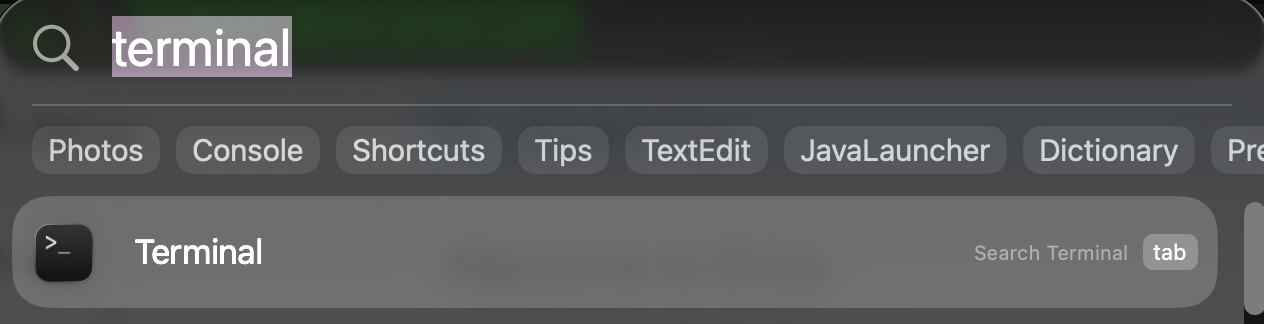
Find where your unzipped ClanGen source is held in finder. Put the ClanGen location after cd. For example, ls /Users/username/Downloads/ClanGen
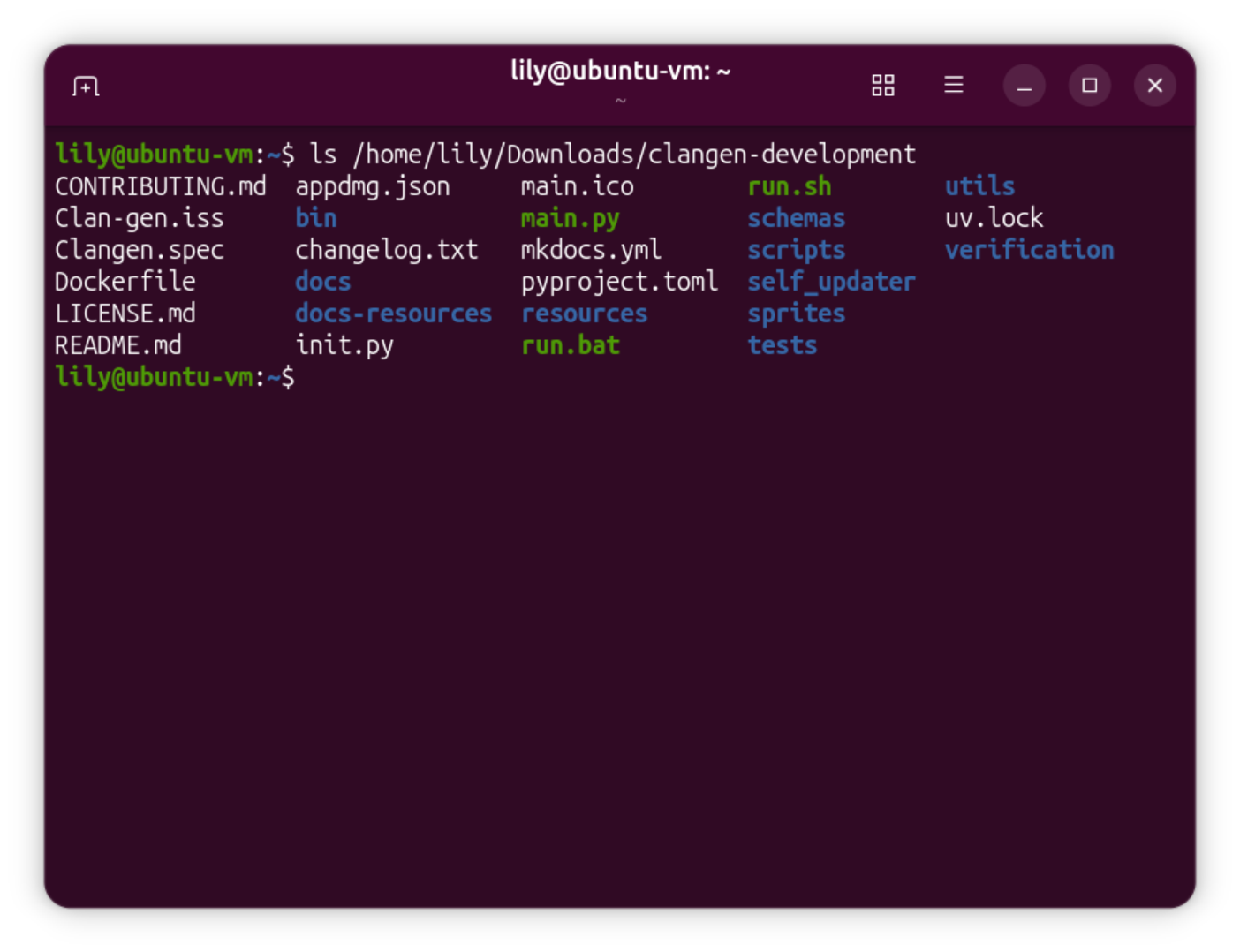
This is to check the path you're trying to apply is correct. You should get something similar to below:

Once confirmed that the path is correct, change the command from previous to have cd. For example, cd /Users/username/Downloads/ClanGen
Proceed to the Commands section below.
PATH: Linux
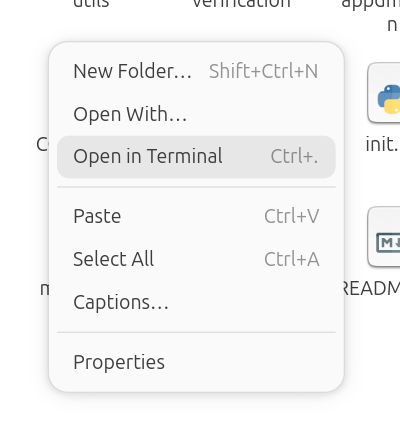
There are two ways to set your terminal to path with linux. You can either do it the manual way, like detailed above (but use /home instead of /Users), or you can open the folder within the linux terminal.
For the manual method, you should get something like this, just like on macOS:
For the automatic method, go to where your unzipped ClanGen source is located on your device, and open it until you get to its internal contents. Right click in an empty space within the file manager, and select open with terminal. It'll automatically open in the correct location; you don't need to use cd.
Commands
Once you're on the right path, you can then start adding commands to your terminal.
The first one is actually installing your dependencies using UV.
uv sync will automatically generate the necessary .venv folder where your dependencies will be held.
Once the above command is finalized (without errors), we can now open the game using the command:
When using the manual way, you will have to put the terminal to the correct file path and use the open command above every time you want to play (Unless the IDE you intend to use offers a run option).
Tip
macOS terminal remembers the last path you set it to, so you shouldn't have to reset it
Common Problems
Having a problem with installing source? Look here!
"I'm using Linux - how do I "unzip" a .zip folder?"
The easiest way to unzip a folder while using linux is:
- Create a folder in the place you want your Source to be held
- Double click your ClanGen source folder to open it
- Select everything you see in the folder
- Drag or copy+paste the contents to the folder in step 1
If that doesn't work for you, you're able to also use downloadable programs, like 7zip, to get an extract option when right clicking the zipped folder.
"My terminal throws the error no 'pyproject.tomi' found in current directory when I do commands."
You're not in path to do the command! Please closely follow the path section for your operating system again.
"The run.sh file just opens in a text editor instead of running."
That means that the run.sh file doesn't have execute permissions, you'll have to grant permissions. Open the folder in your terminal, as described above. Then copy and paste the following command and press enter:
Then try running the run.sh file again.
For those who don't want to go through permissions, follow the manual way of opening the game.
"When I try to extract the zip, it tells me I have to pay."
You should NOT have to pay anything to extract a zip folder. If you do not have a default "extract" option provided by your device, remove the program you were using previously and download 7zip or another free alternative.
Note
macOS's system has the ability to decompress zips with just a double click, so you don't need a separate program for anything.
"My IDE's run feature results in an error."
Try to run the game normally with either the run file or uv run main.py instead. ClanGen doesn't necessarily consider IDE's when making the game runable, so sometimes run features work, sometimes they do not.
"'uv' is not recognized as an internal or external command'" or "uv: command not found"
You either do not have UV installed, or you're using a version of ClanGen that requires a different dependency installer. Make sure to double check that you're on the correct version and that you did every step correctly.