Reporting a Bug
Thank you for your interest in helping improve ClanGen! We're sorry to hear you've encountered issues, and we hope we can help resolve them!
Bugs as a result of save editing
A quick aside before we begin: ClanGen does not support editing your own saves manually. Although we host resources that help you do so, these are player-maintained and not affiliated with ClanGen in any way. Bugs as a result of save-editing will NOT be investigated or fixed, and any issues that arise as a result of editing saves are the player's sole responsibility.
Reporting bugs with edited saves
Do not submit bug reports for bugs encountered on an edited save. If you encounter a bug whilst playing on an edited save, only report it if you can replicate it in an unedited save.
Good to go? Head to the new issue page on GitHub (opens in a new window)
FAQs
- How do I find my game version?
- What's a patrol ID? Do I need it?
- How do I find the patrol ID?
- How do I find the error log?
How do I find my game version?
Playing stable
-
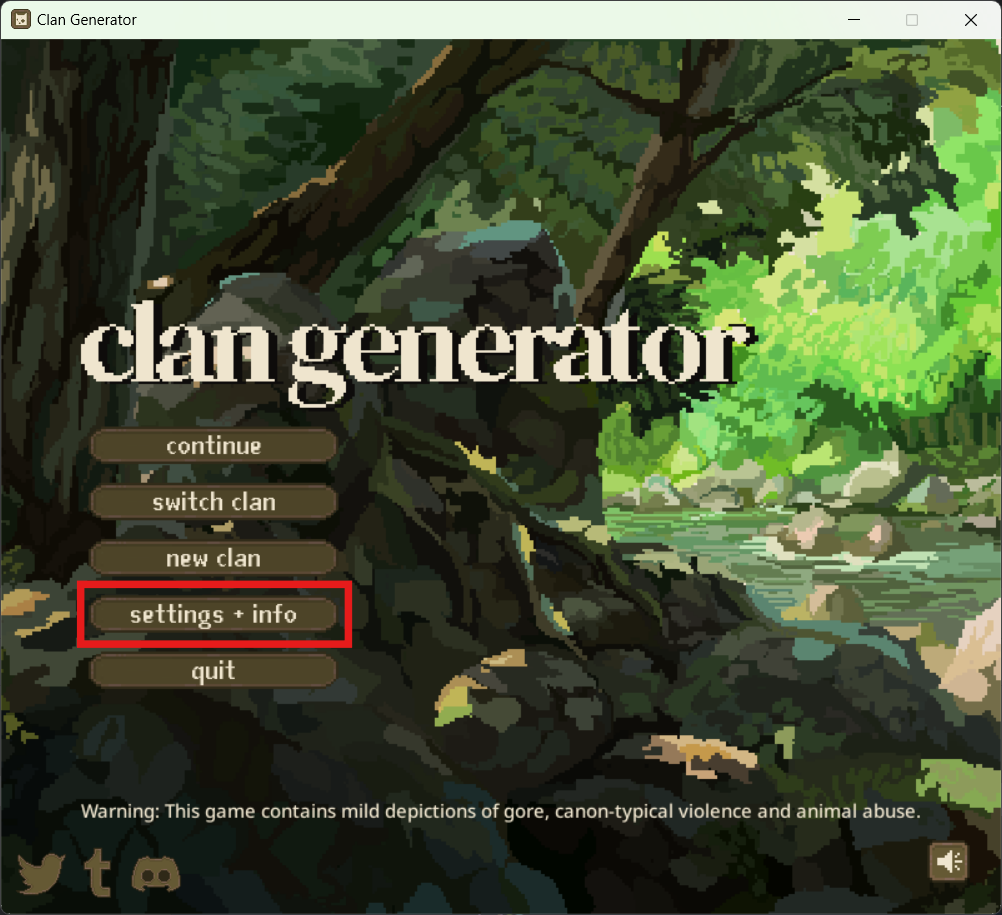
If you can open the game, press the settings + info button
Can't open the game?
Jump to can't open the game.
-
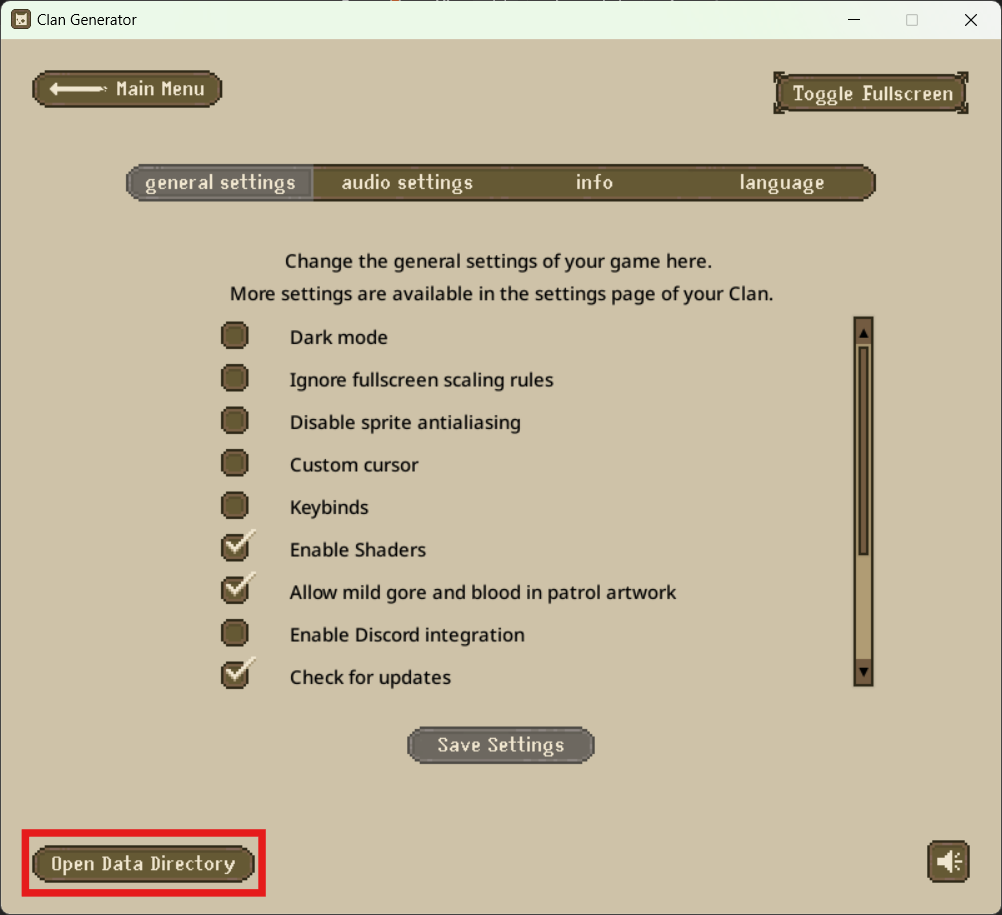
Press "Open Data Directory". This will open a file explorer on your computer.
- Open the "logs" folder.
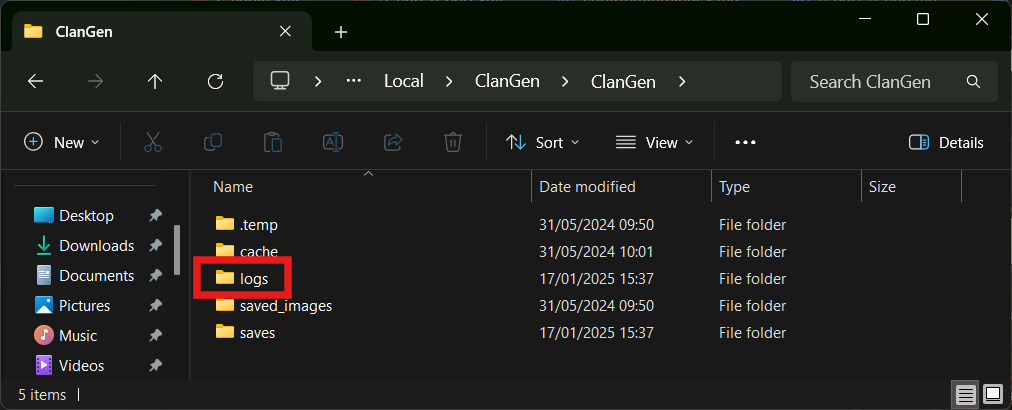
- Find the most recent stdout file and open it in Notepad or a similar text editing program.
-
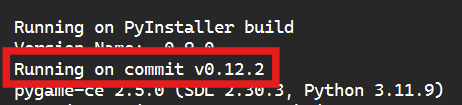
Copy the version number from the third line, "Running on commit [...]"
Tip
If you don't see something that looks like this, ensure you selected stdOUT, not stdERR.
Playing development
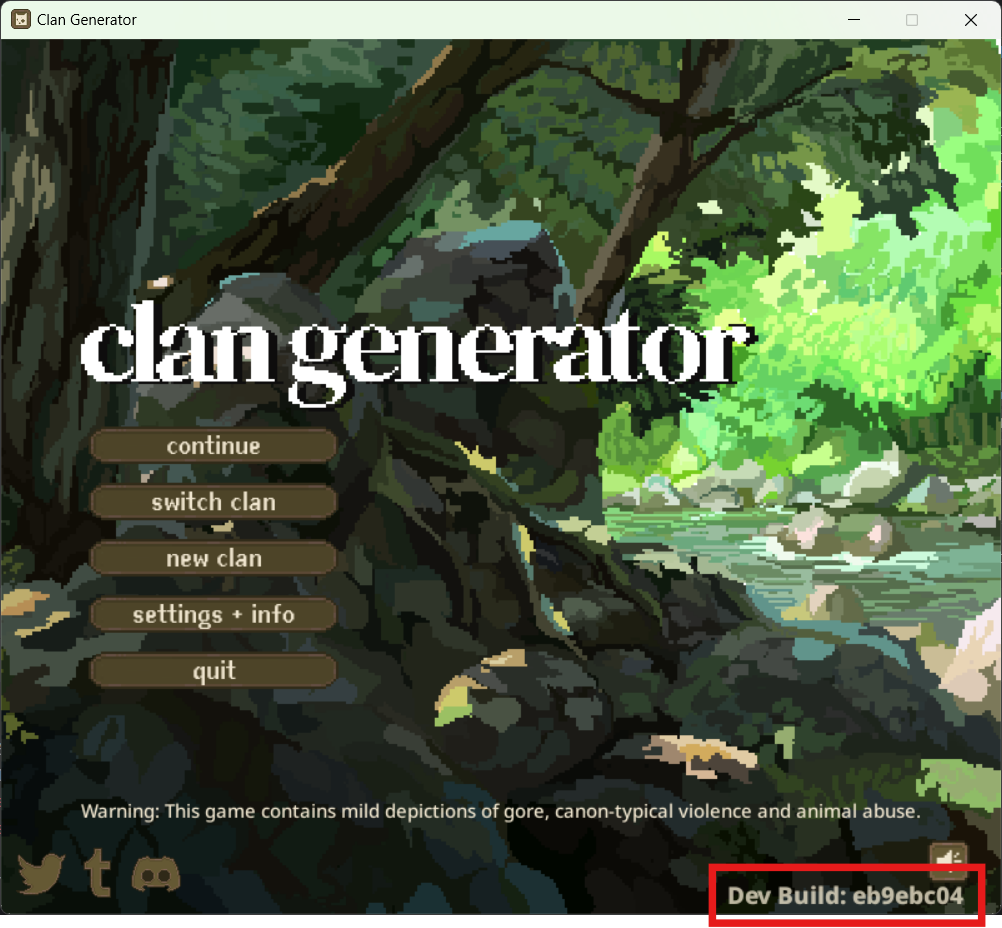
On development versions of ClanGen, the commit number is in the bottom-right of every screen.
Can't open the game?
If the game immediately crashes, you can get to the default log location manually.
If you are running a source code version of ClanGen, the log files are stored in a folder called logs within the folder the source files are located in.
| Operating System | Default Location |
|---|---|
| Windows | C:\Users\[your user name]\AppData\Local\ClanGen\ClanGen/logs |
| Mac | /Users/[your user name]/Library/Application Support/ClanGen/logs |
| Linux | /home/[your user name]/.local/share/ClanGen/logs |
| Operating System | Default Location |
|---|---|
| Windows | C:\Users\[your user name]\AppData\Local\ClanGen\ClanGenBeta/logs |
| Mac | /Users/[your user name]/Library/Application Support/ClanGenBeta/logs |
| Linux | /home/[your user name]/.local/share/ClanGenBeta/logs |
What's a patrol ID? Do I need it?
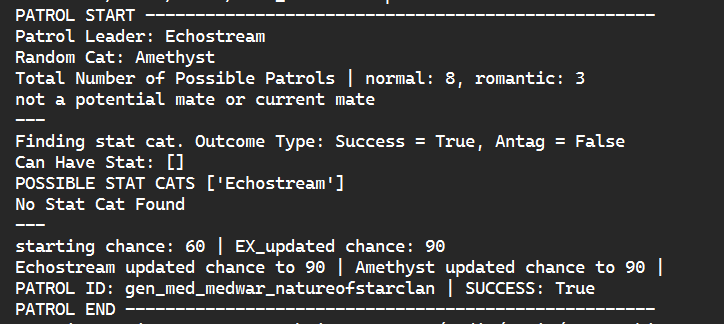
The patrol ID is a string that the game and developers use to refer to the sequence of events in a patrol. It might look
like this: gen_hunt_rabbit.
If you encountered your issue on the Patrol screen at some point after selecting cats, we'll want the patrol ID to investigate what happened.
How do I find the patrol ID?
See the section on finding your game version to find the stdout file. Scroll right to
the bottom of that file and find the affected patrol (it can be identified by which cats were on it if it's not the last
one).
How do I find the error log?
See the section on finding your game version to find the log directory. Instead of
selecting stdout, find and upload the most recent stderr. You can either upload the file or copy its contents, but
the entire file's contents are required.